





















The Practical Guide
Sharp Print Starts With Pixels, Size and Viewing Distance
A file can look sharp on screen and still look soft in print. But that does not mean every job needs the same resolution. The right question is: how many pixels does this image have at the size it will actually print?
Julia's guide explains the difference between pixels, PPI and DPI, why enlarging a photograph can make it look blurry, and why a large-format graphic can sometimes work beautifully at a lower effective PPI than a small print viewed at arm's length.
Meet Julia
Your Artwork Advice Expert

When I review artwork, I do not start by asking whether a file says 72 or 300. I check the pixel dimensions, the final physical size, the product and how the graphic will be seen.
"Resolution is not a magic number. It is the relationship between the pixels you have and the size you need."
Pixels, PPI and DPI: The Useful Difference
Pixels are the actual building blocks in a raster image. A 3000 x 2000 pixel photograph contains six million pixels, regardless of the number written in its resolution box.
PPI means pixels per inch. It describes how densely those pixels are placed at a chosen print size. Make the same image print larger and its effective PPI falls; make it print smaller and its effective PPI rises.
DPI describes the dots an output device can place. It is not the same thing as the image's pixel resolution, even though the terms are commonly used interchangeably.
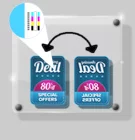
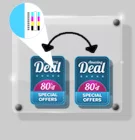
Same pixel file
Pixel dimensions stay fixed until you resample the image.
Different print sizes
At a smaller printed size, those pixels are packed closer together. At a larger size, they are spread further apart.
The Common Myth
Why 72ppi Is Not a Print Rule
72ppi became associated with older screen workflows. It does not tell you whether a file is suitable for a particular physical print size on its own.
A 72ppi label can be changed without adding meaningful picture detail if the image is not resampled. What matters is the underlying pixel dimensions and the size you are asking that image to cover.
Why 300ppi Is Helpful, But Not Universal
For many small, close-viewed print pieces, 300ppi is a useful target for photographic images. It is a good starting point, not a universal pass-or-fail test.
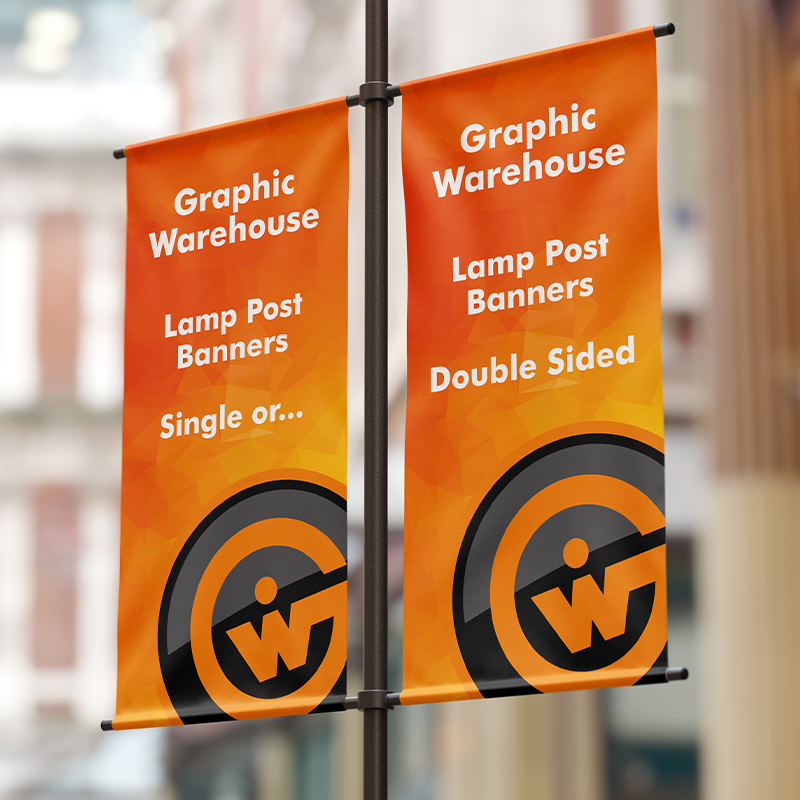
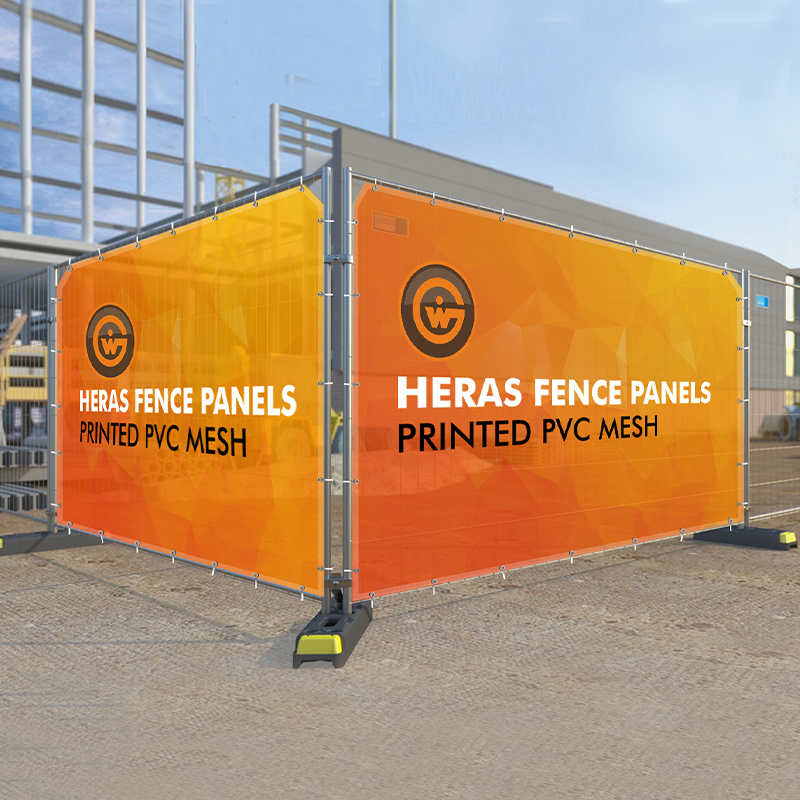
Large-format products are often viewed from further away, so a lower effective PPI may be appropriate. A shop poster, exhibition wall, banner or billboard is not inspected in the same way as a small leaflet or photo print. Conversely, tiny text and detailed product photography need more care because the viewer is close.
The Quick Resolution Check
- Find the image's pixel width and height.
- Confirm the final print size in the correct product template.
- Divide pixels by the required printed inches to calculate effective PPI.
- Consider how closely the finished graphic will be viewed.
- Open the artwork preview at a useful zoom and inspect critical details.
- Ask the Graphic Warehouse team before enlarging a low-resolution image.
Raster Images vs Vector Graphics
Photographs, screenshots and most web images are raster images: they are made from a fixed number of pixels. When enlarged too far, those pixels become visible and fine detail becomes soft or blocky.
Vector logos, type and simple illustrations are built from mathematical paths. They can remain sharp at different sizes, provided they stay as vector objects in the supplied artwork. Do not replace a logo with a low-resolution screenshot when the original vector file is available.
Large Format
Why Viewing Distance Changes the Answer
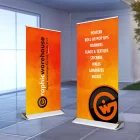
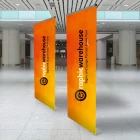
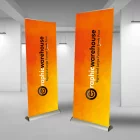
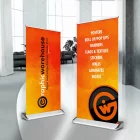
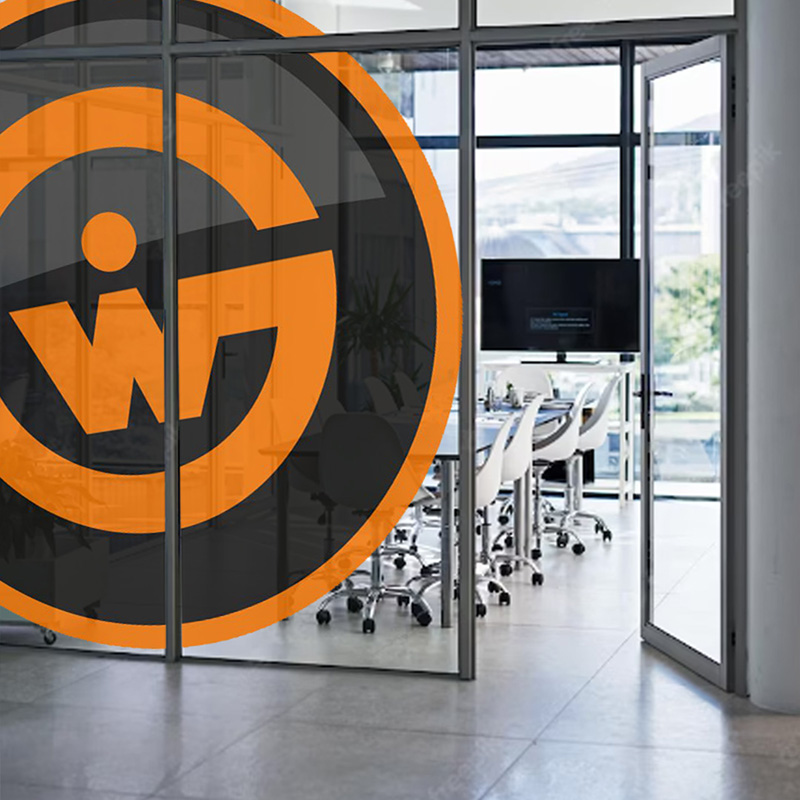
A large-format print can have a lower effective PPI than a small printed item and still look excellent at its normal viewing distance. That is why a single resolution rule is not reliable across posters, banners, exhibition graphics, window vinyl and building-scale displays.
However, viewing distance is not a rescue plan for every file. Fine faces, small text, QR codes, product shots and crisp brand marks still need appropriate source quality. The product template and your artwork preview provide the right context.
Common Resolution Mistakes
- Placing a small web image across a much larger print area.
- Changing 72ppi to 300ppi and expecting new image detail.
- Using a screenshot instead of the original logo or photograph.
- Ignoring the scale percentage in the design application.
- Flattening vector logos or type into a low-resolution bitmap.
- Assuming a very large file must be high quality.
Frequently Asked Questions
Is 72ppi too low for print?
Not enough information on its own. Check the pixel dimensions against the final physical print size. A 72ppi setting without context does not define the available image detail.
Does every print file need to be 300ppi?
No. Around 300ppi is often a useful target for close-viewed photographic print, but large-format work can require a different effective resolution depending on scale and viewing distance.
Can I make a low-resolution image high resolution?
Resampling can increase the pixel count, but it cannot restore original detail. It may help in some situations, but the result still needs checking at final size.
Are vector files always sharp?
Vector objects scale cleanly while they remain vectors. They can lose that advantage if they are rasterised, exported too small or replaced with a screenshot.
What should I send for a logo?
Use the original vector logo where possible, such as an AI, EPS, SVG, CDR or suitable PDF, rather than a small web image.
Can Graphic Warehouse check my artwork?
Yes. Tell the team the exact product and size you are ordering so the resolution can be considered in its proper production context.
Need a Hand?
Check Your Artwork Before It Goes Large
Choose the product first, work at the final size and use the product-specific template. If you are unsure whether an image has enough pixels, ask Julia's team before production.
START YOUR PRINT ORDERASK JULIA'S TEAM USING ONLINE CHAT!Next Time in Julia's Print Clinic
Vector vs Raster: Which File Type Do You Need?
Julia looks at the difference between photos, screenshots and scalable vector artwork - and why it matters before you place an order.
Please login to post a comment.