





























Julia's Print Clinic | Episode 6
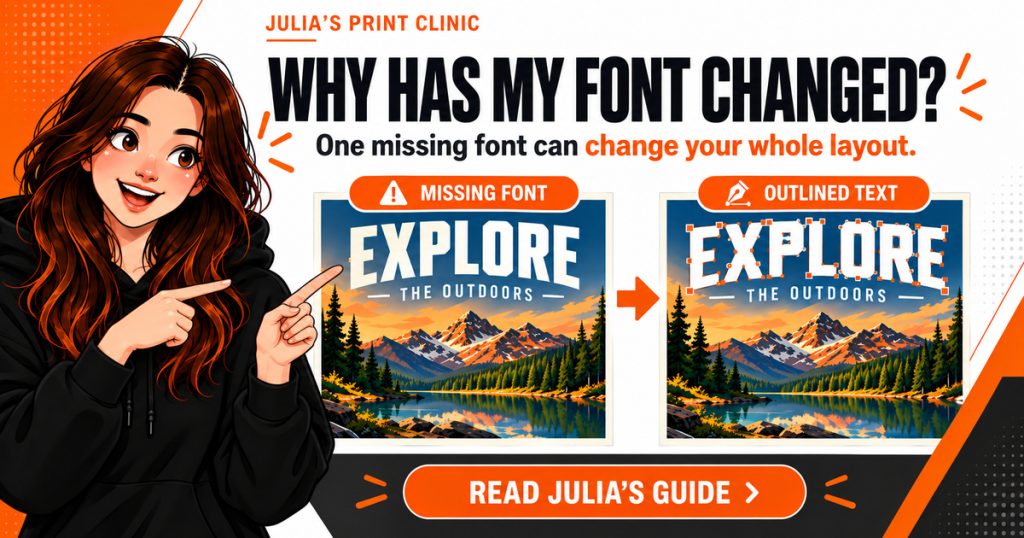
Why Has My Font Changed?
Missing Fonts, Outlining Text & Print-Ready PDFs
A font can look perfect on your screen and still become a problem when the artwork reaches another computer. The words may be correct, but the typeface can substitute, line breaks can move, a price can wrap onto a second line or a carefully spaced headline can suddenly look completely different.
That is why fonts matter in print production.
Graphic Warehouse's current product artwork instructions state that fonts should be embedded or converted to curves (outlines). That gives you two practical routes to a safer print PDF: include the permitted font data inside the PDF, or turn the final letterforms into vector shapes so the file no longer depends on that font being installed.
The important part is not to outline everything as soon as you start designing. Keep an editable master, finish the wording first, then prepare the version that is actually going to print.
Julia's rule: If the text is final, make sure the print file can reproduce it without depending on someone else's computer having exactly the same font.
Meet Julia
Your Artwork Advice Expert
I check customer artwork before it reaches production. Missing fonts are one of those problems that can be tiny in the file but very obvious on the finished print.
A substituted font can be wider or narrower than the original. That can change a line break, push text outside a safe area, alter the balance of a logo or make a carefully designed promotion look wrong.
The good news is that this is normally easy to prevent.
What Is a Missing Font?
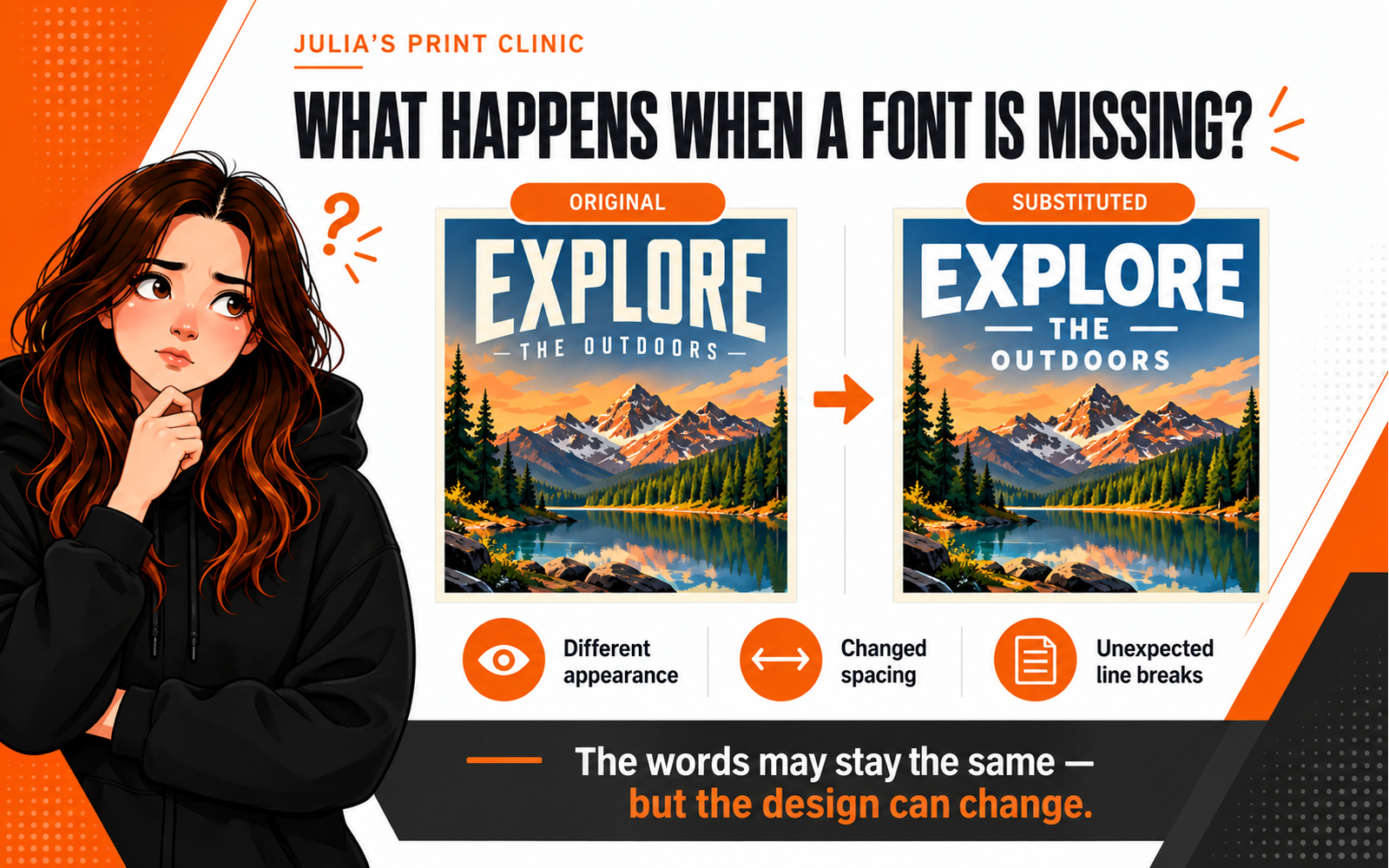
When you create live text in Illustrator, InDesign, CorelDRAW or another design application, the file normally refers to a particular font. If another computer opens that editable file and the same font is not available, the application may flag the font as missing, offer to activate it, or substitute another typeface.
Substitution is not just a cosmetic change. Different fonts have different character widths, x-heights, weights and spacing. A replacement can make text reflow even when the wording has not changed.
A print PDF can avoid that dependency if the required font data is embedded correctly, or if the final text has been converted into vector outlines or curves.
Live Text, Embedded Fonts and Outlined Text
Live Text
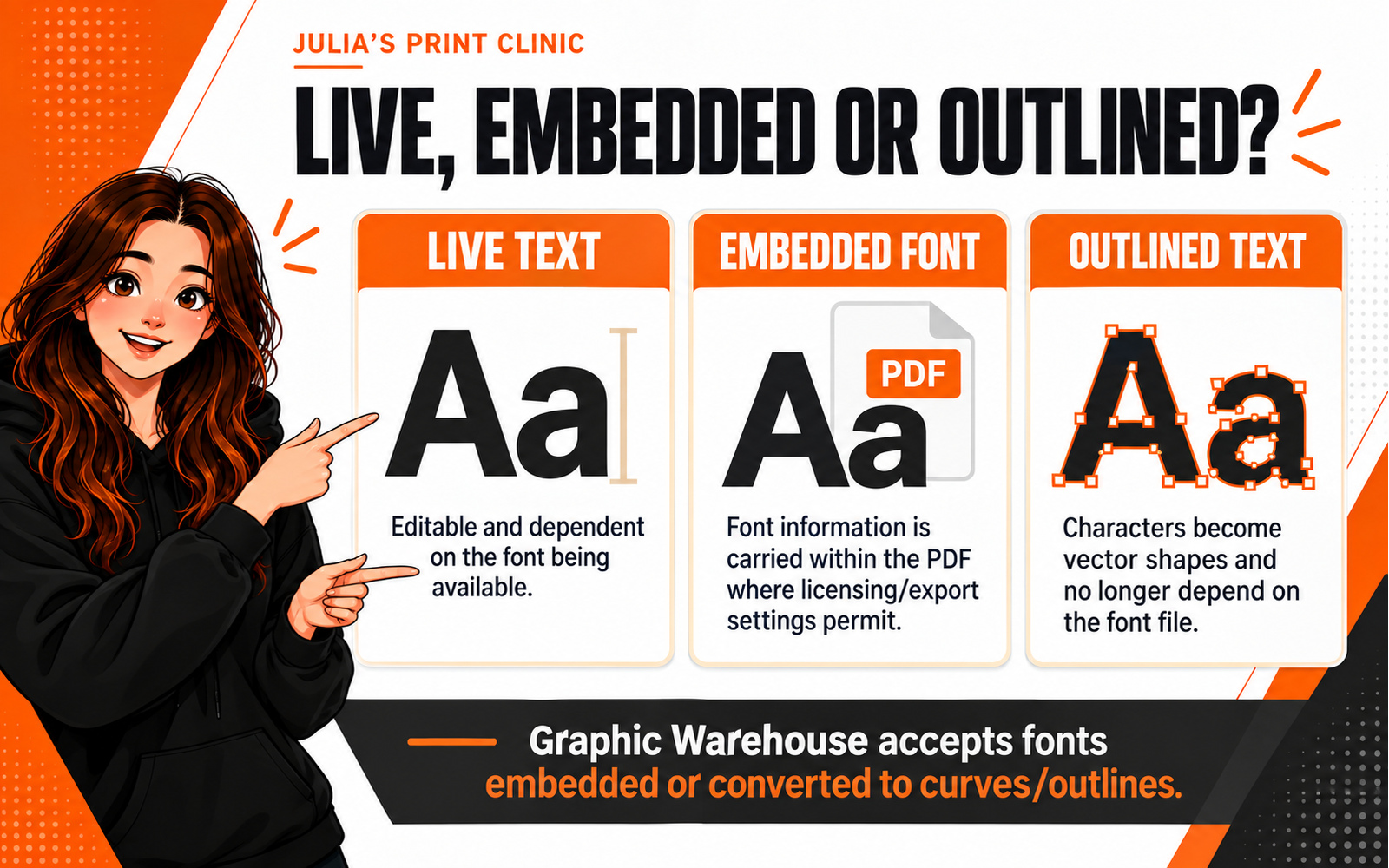
Live text is still editable. You can change the wording, font, size, tracking and other typography settings.
That flexibility is useful while you are designing, but it also means the appearance depends on the font resource being available or correctly carried into the final PDF.
Embedded Fonts
Embedding includes permitted font information inside the PDF. Adobe explains that embedding helps prevent substitution and preserves the intended appearance across systems. Some fonts can only be embedded if their licence and internal permissions allow it.
This is often the cleanest route when you want the PDF to preserve real text.
Outlined or Curved Text
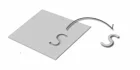
When text is converted to outlines in Adobe applications, or to curves in CorelDRAW, the letters become vector shapes.
The file no longer needs the font to draw those letterforms. That makes the appearance portable, but normal text editing is lost. Adobe also notes that outlined text loses font hinting, which can matter for very small type or low-resolution output.
That is why I always recommend keeping an editable master with the original live text.
What Graphic Warehouse Requires
Graphic Warehouse's current product-specific artwork instructions specify:
Fonts: Embedded or Converted to Curves (Outlines)
That wording is useful because it does not force every customer into one method.
If your PDF export embeds the fonts correctly and the font licence permits embedding, the text can remain live inside the PDF.
If you want to remove the font dependency entirely, convert the final approved text to curves or outlines before producing the print PDF.
Whichever route you choose, reopen the exported PDF and inspect it before upload.
Route 1: Embed the Fonts in the PDF
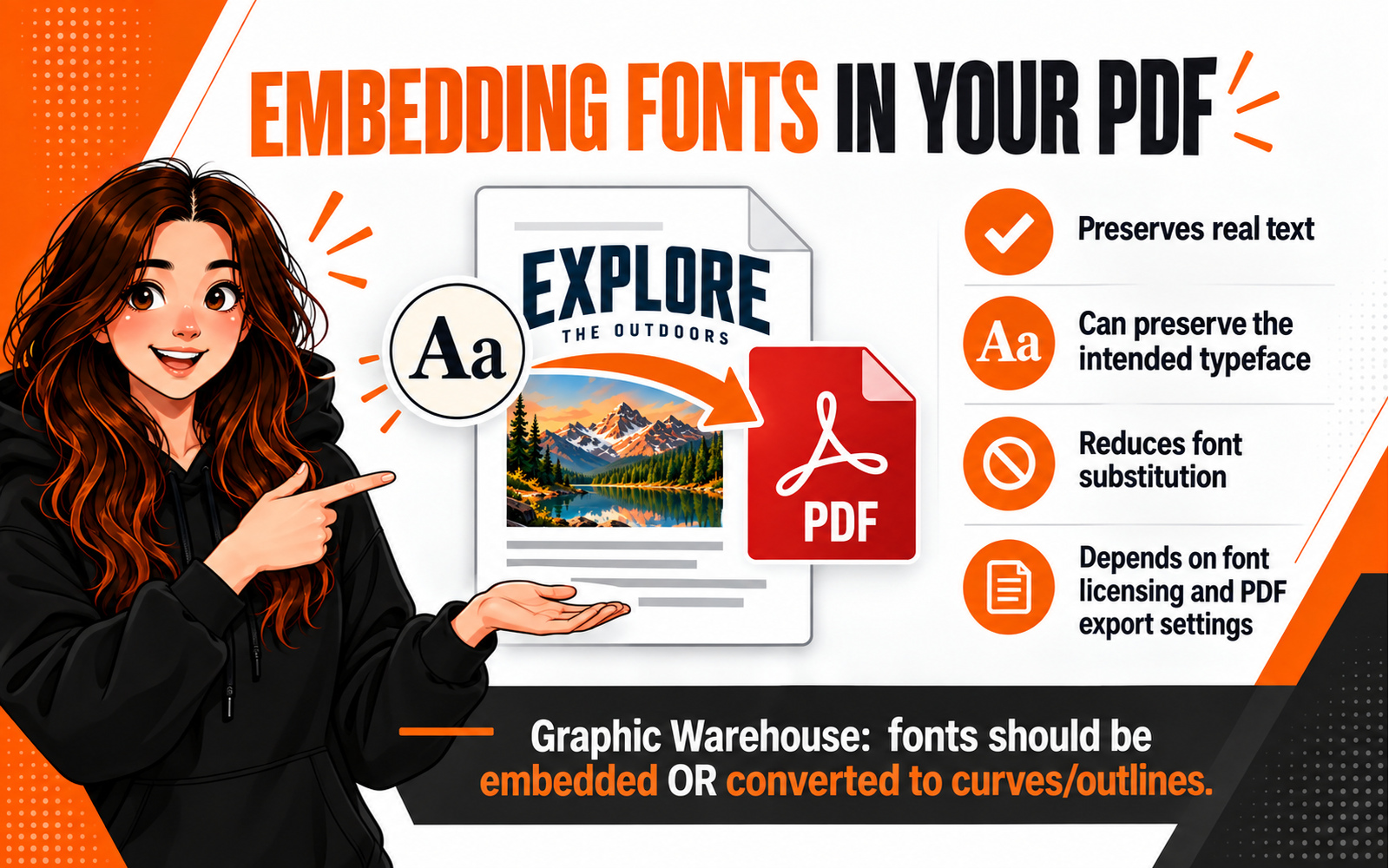
A properly created print PDF can include the font data required to reproduce the text.
Adobe's PDF guidance explains that embedded fonts help prevent substitution. PDF/X workflows are also designed to reduce common print-production variables including font problems.
A practical workflow is:
- Finish the wording and typography.
- Export using the appropriate print PDF settings.
- Make sure fonts are embedded where the licence permits it.
- Reopen the exported PDF.
- Check the fonts and visual appearance.
- Upload the PDF and inspect the Graphic Warehouse proof.
In Acrobat, the document's font information can be inspected through Document Properties and the Fonts section. If the font is shown as embedded or embedded subset, the PDF contains font information for the document.
Do not assume that the `.pdf` extension proves everything is embedded. The export settings and the font's permissions still matter.
Route 2: Convert the Final Text to Outlines or Curves
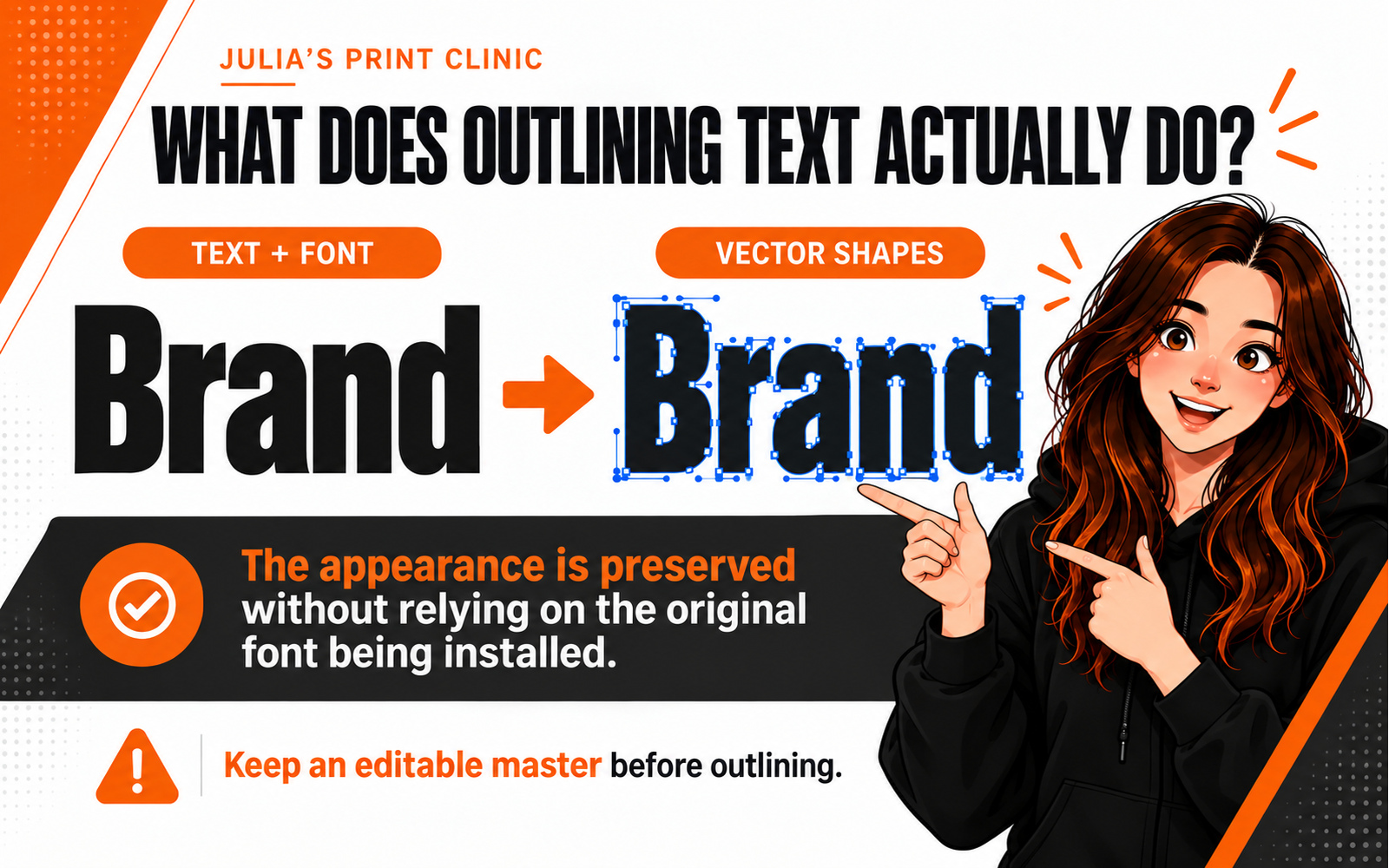
Outlining removes the need for the receiving system to have the original font installed.
The trade-off is editability.
Once you have turned a headline into vector letter shapes, changing "20% OFF" to "25% OFF" is no longer a normal text edit. That is why the editable master should stay untouched.
A safe sequence is:
Editable master → duplicate/final copy → outline or curve text → export print PDF → reopen and check
This is especially useful for logos, headlines, display type and approved campaign artwork where the wording is final.
Adobe Illustrator
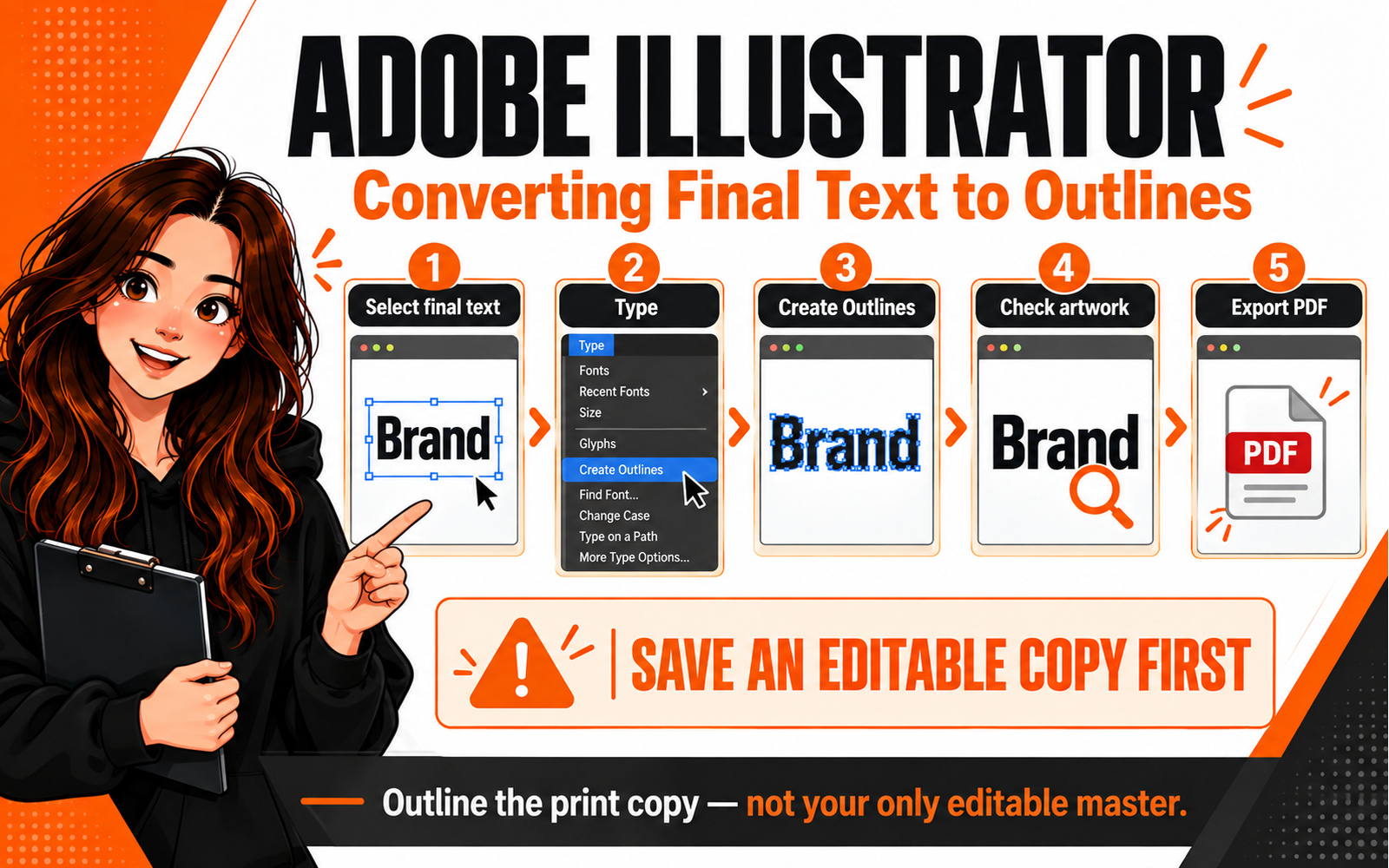
Create Outlines
- Save your editable Illustrator file first.
- Select the text you want to convert.
- Choose Type > Create Outlines.
- The letters become vector paths.
- Check that the appearance has not changed.
- Export the final print PDF.
- Reopen the PDF and inspect the artwork.
Adobe documents the shortcut as Shift + Ctrl + O on Windows. The equivalent on macOS uses Command.
Do not convert the only editable copy of your artwork.
Adobe InDesign
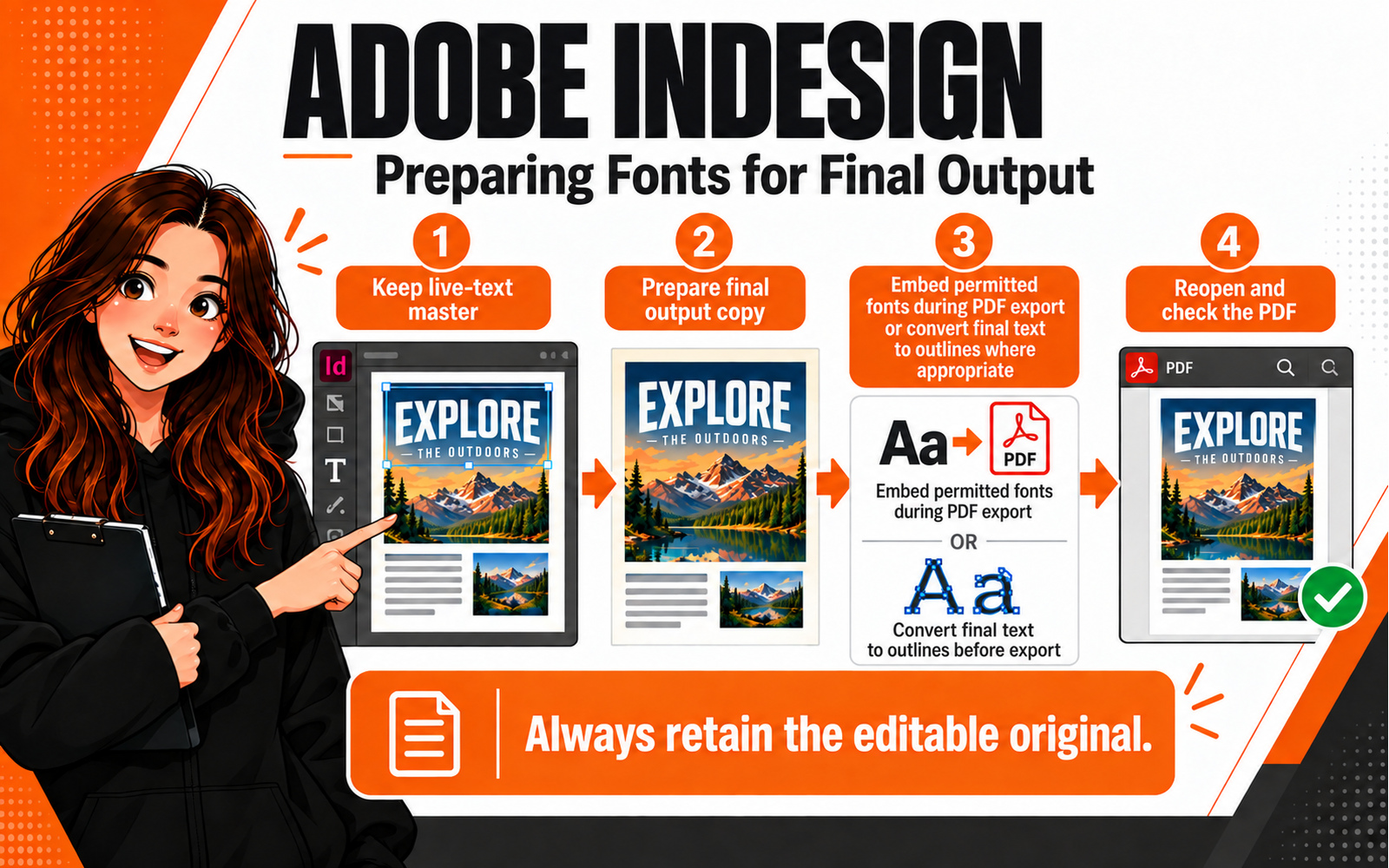
Create Outlines
InDesign can also convert selected type to outlines using Type > Create Outlines.
Adobe specifically warns that once text is converted, normal text editing and typography controls are lost. It recommends keeping a copy of the original text.
For long documents or lots of small body copy, embedding fonts in a properly exported PDF is often more practical than manually outlining every paragraph. Follow the print workflow for the product and inspect the exported PDF.
CorelDRAW
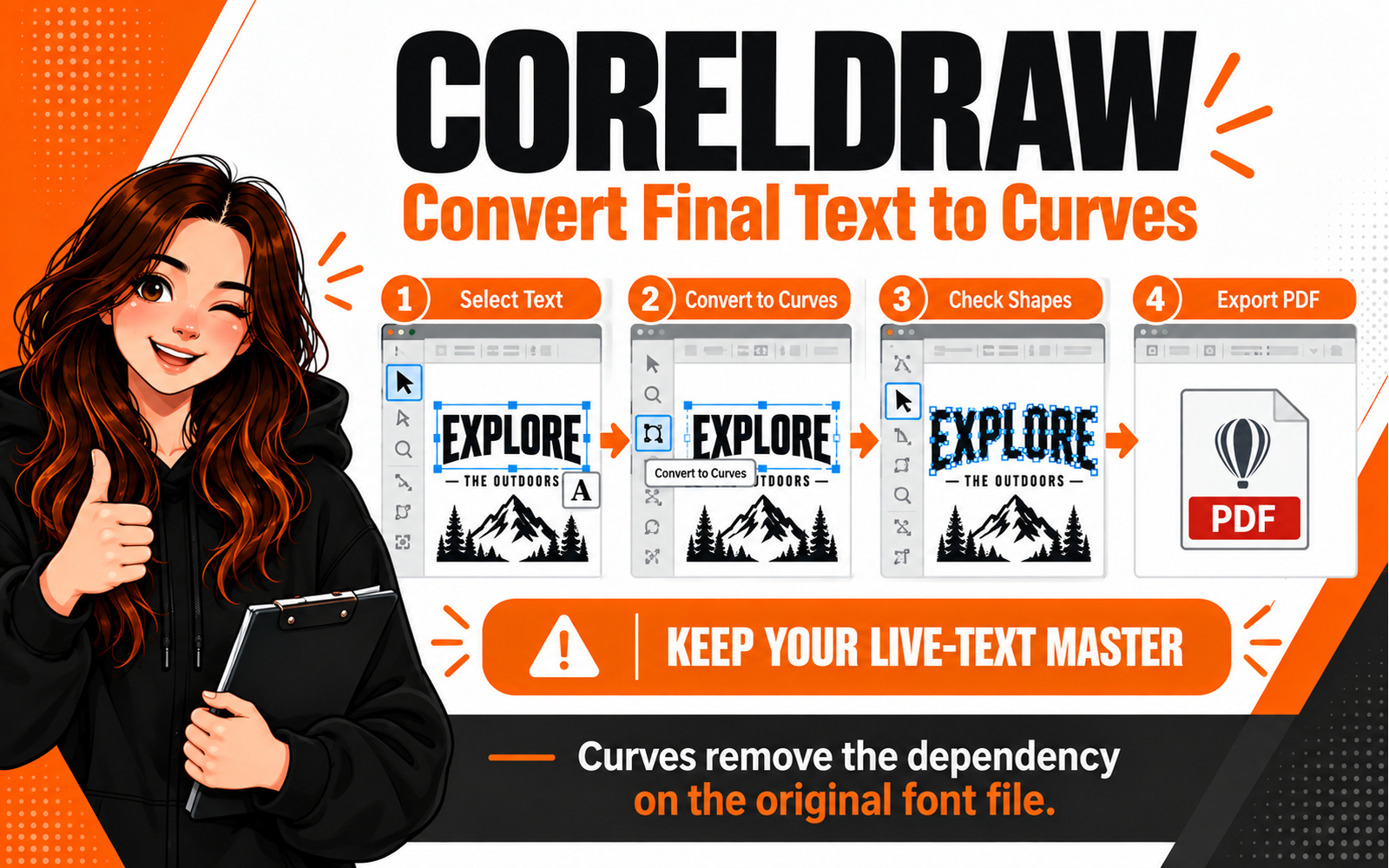
Convert to Curves
CorelDRAW uses the term Convert to Curves.
- Save the editable CDR file.
- Select the required text.
- Choose Object > Convert to Curves.
- Check the characters and spacing.
- Export the print PDF.
- Reopen and inspect the result.
CorelDRAW's current documentation confirms that artistic and paragraph text can be converted to curves and that converted text is no longer editable as text. Corel also provides PDF export options that can convert text to curves for publishing workflows.
Canva Users: What Should You Do?
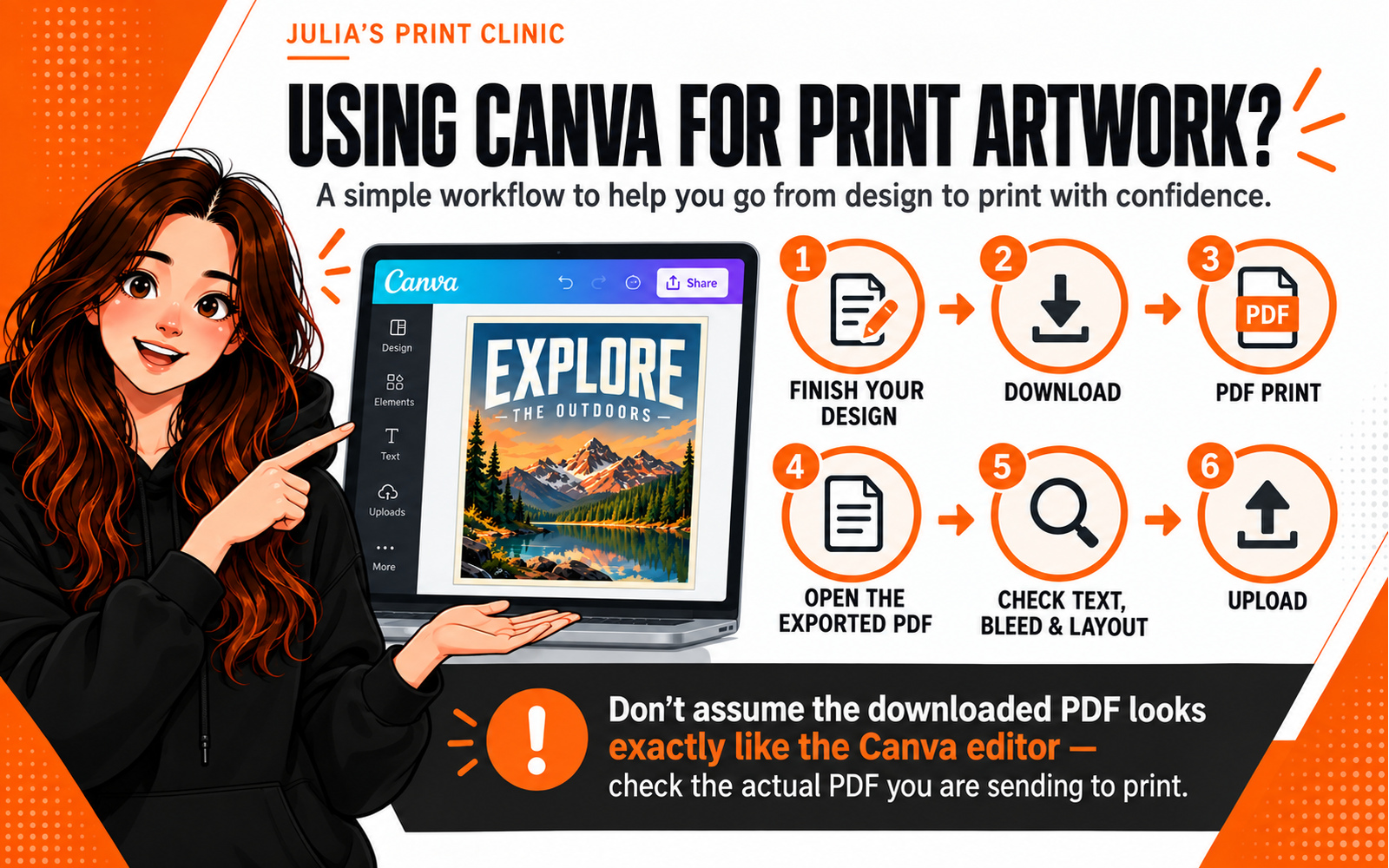
Canva has made professional-looking design accessible to people who may never have used Illustrator, InDesign or CorelDRAW. That is a good thing - but print still has production requirements.
For a Canva design being supplied to Graphic Warehouse:
- Start with the correct Graphic Warehouse product template and dimensions.
- Keep important text inside the safe area.
- Finish and proof every word before export.
- Download using PDF Print rather than a small web image.
- Reopen the PDF and inspect every page.
- Check the online proof before approving production.
Canva also offers a Flatten PDF option. Canva says flattening can help fonts display accurately by making the design static. That can be useful for a final design, but it should not be treated as a universal print fix.
If your artwork contains production information that needs to remain as usable vectors - for example a cut path or other finishing data - do not flatten it blindly. Flattening can remove useful editable or vector structure. Use the Graphic Warehouse product template and the required production workflow.
Canva Pro and several other Canva plans also allow custom font uploads, subject to the font licence. If you are using a corporate typeface, make sure you have permission to upload and use it.
Do I Need to Send the Font File?
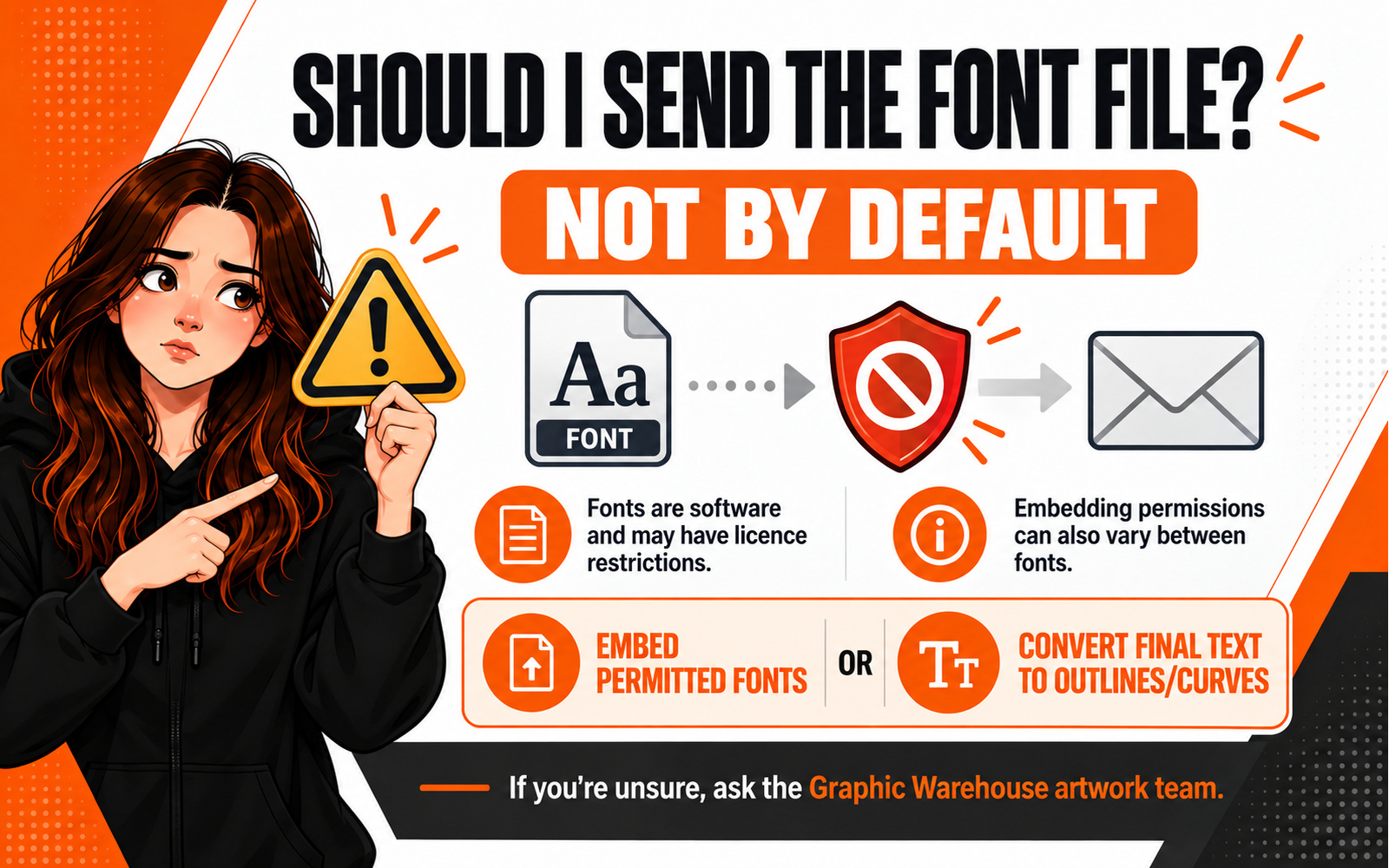
Usually, a self-contained print PDF is the better route.
Font files are software and their licences can restrict sharing. Adobe notes that many font licences do not permit font files to be sent to a third party unless that party has its own valid licence.
Embedding permitted font data in a PDF, or converting the final text to outlines/curves where appropriate, avoids casually passing font software around.
If a printer genuinely needs an editable source file, check the font licence before packaging or sending the font files.
Why Fonts Sometimes Change Even When the PDF Looks Fine
A PDF is a container. Its contents and export settings matter.
Problems can appear when:
- the font was not embedded;
- the font licence prevents embedding;
- the artwork was supplied as an editable source file rather than a self-contained PDF;
- a different version of the same font is used;
- text was edited after the PDF was created;
- a fallback font was substituted during export;
- the design was reopened on a machine without the original font;
- the wrong PDF version was uploaded.
The safest check is simple: reopen the exact file you intend to upload, inspect the text, then inspect the online proof.
Why Outlining Too Early Is a Mistake
Outlining solves one problem by deliberately removing normal text editability.
If you outline too early and then spot a typo, price change or date correction, you have made the edit harder than it needs to be.
Keep two versions:
MASTER - editable text
and
PRINT - final output
That gives you a safe working file for future changes and a production file prepared for output.
For repeat campaigns, this is particularly important. Next month's banner may use the same design with a different date, offer or location.
Common Font Mistakes
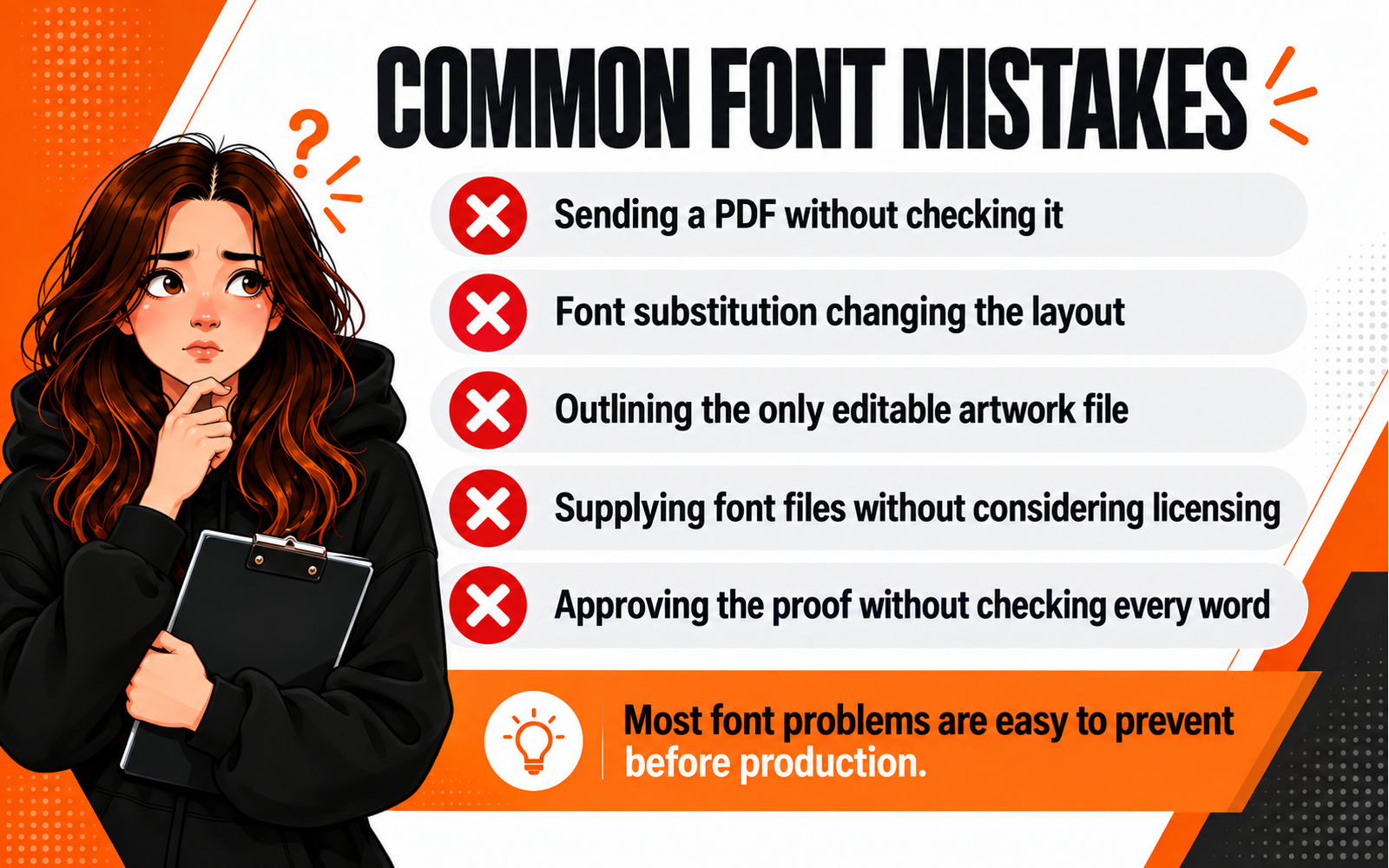
Sending an Editable File With Live Fonts
An AI, INDD or CDR file can depend on fonts installed on the designer's machine. A properly prepared PDF is normally safer for print delivery.
Assuming PDF Means the Fonts Are Safe
PDF can embed fonts, but it does not guarantee that every font has been embedded. Check the final file.
Outlining Before Proofreading
Once the text becomes paths, simple wording changes become more awkward. Approve the copy first.
Flattening Everything
Flattening the entire design just to solve one font can also remove useful vector information. Resolve the font problem without unnecessarily destroying good vector artwork.
Sending Font Files Without Checking the Licence
The fact that you have a font file does not automatically mean you can distribute it.
Ignoring the Final Proof
The proof is where you check that the text still looks like the design you approved. Look at line breaks, prices, dates, phone numbers, URLs and anything close to the safe area.
Julia's Final Font Checklist
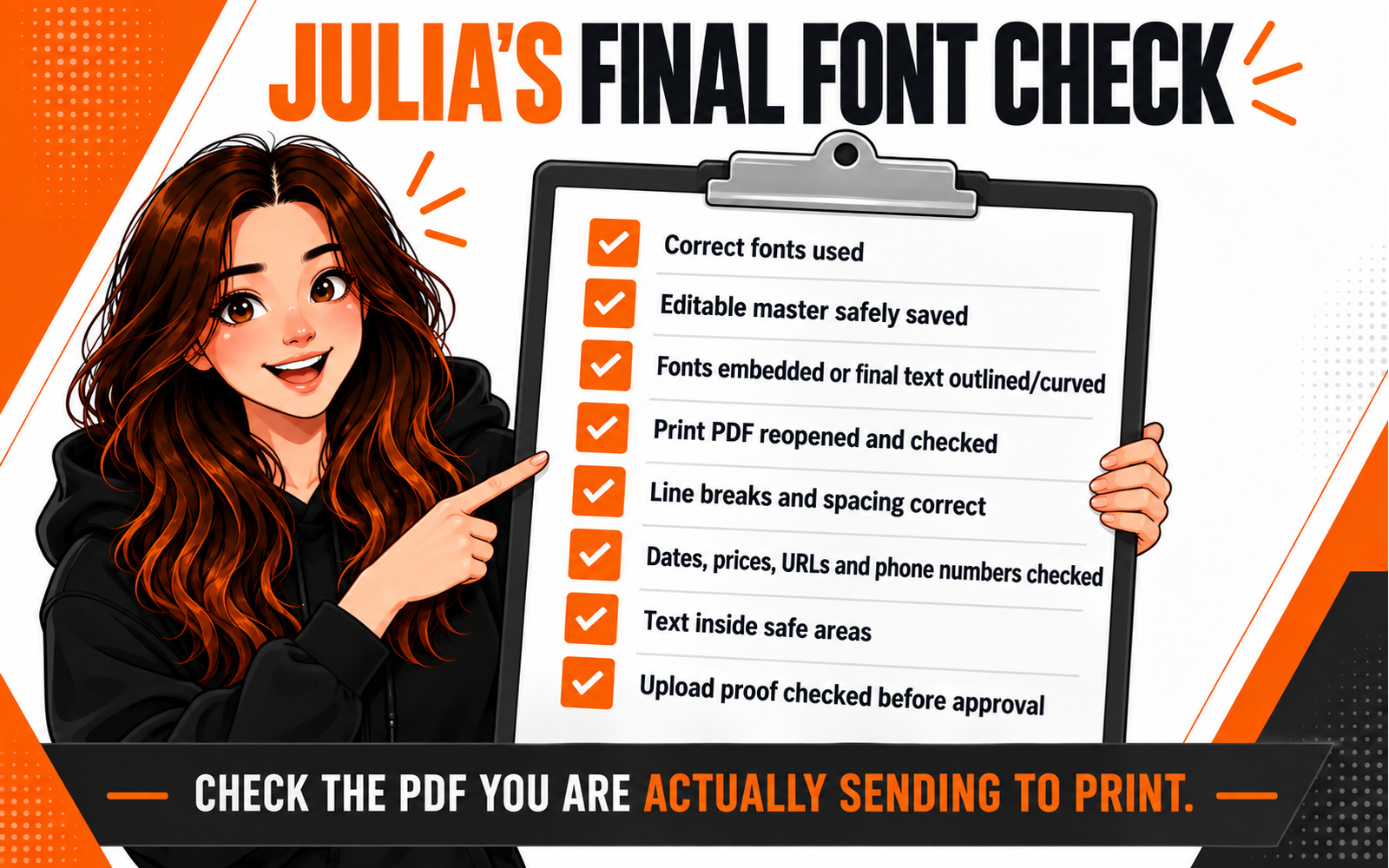
Before you approve the artwork:
- Use the template for the exact product, size and finish.
- Confirm every word, date, price, URL and phone number.
- Keep an editable master with live text.
- Embed fonts in the PDF or convert the final text to curves/outlines.
- Do not rely on another computer having your font installed.
- Do not send font files unless the licence allows it.
- Reopen the exported PDF.
- Check line breaks, spacing and alignment.
- Make sure important type stays inside the safe area.
- Check the Graphic Warehouse upload proof before approval.
Julia's Pro Tip
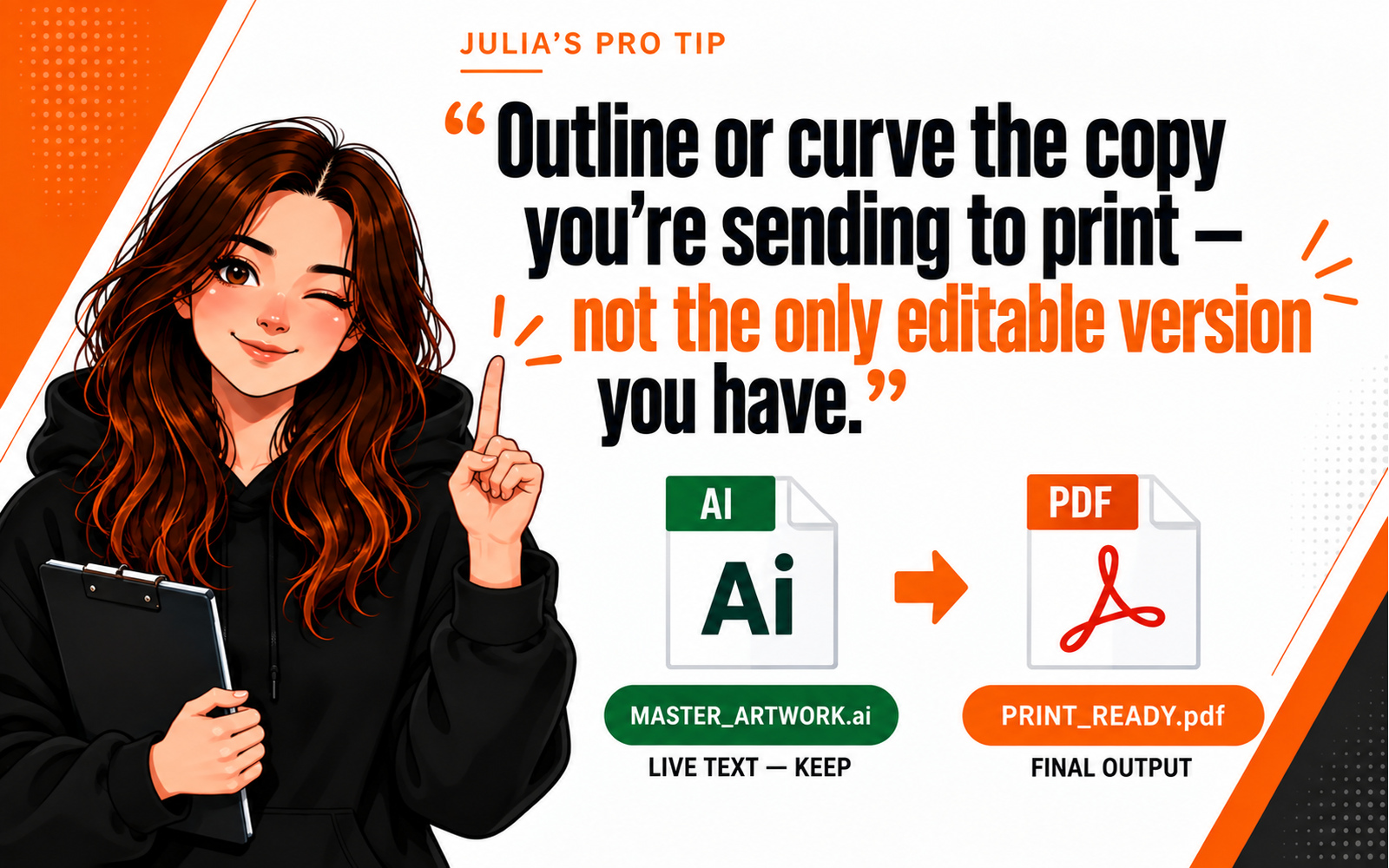
"Outline or curve the copy you are sending to print - not the only editable version you have."
Frequently Asked Questions
Why has my font changed?
The most common reason is that the original font was not available to the system opening or processing the editable artwork, so another typeface was substituted. A properly embedded PDF or outlined/curved text removes that dependency.
Should I convert every font to outlines?
Not automatically. Graphic Warehouse's current artwork instructions accept fonts that are embedded or converted to curves/outlines. Keep an editable master and choose the appropriate final-output method.
What does embedding a font mean?
It means permitted font data is included inside the PDF so the document can reproduce the intended type without depending entirely on fonts installed on another computer.
What happens when I outline text?
The letters become vector shapes. Their appearance no longer depends on the font being installed, but the wording is no longer normally editable with the text tool.
Can I edit outlined text?
You can edit the vector shapes, but you cannot treat the result like normal live text. Keep the original editable file.
Should I send my font files with the artwork?
Not by default. Font licences can restrict sharing. A correctly prepared PDF with permitted embedded fonts, or final text converted to curves/outlines, is normally safer.
What should Canva users export?
For print, Canva provides a PDF Print export. Reopen the exported PDF and inspect it carefully. Canva's Flatten PDF option can lock the design appearance, but do not flatten blindly when production vectors or finishing information must remain usable.
How can I check whether a PDF contains embedded fonts?
In Adobe Acrobat, open the document properties and inspect the Fonts information. Embedded fonts are identified there. You should still visually inspect the final PDF and the upload proof.
Can Graphic Warehouse check my file?
Yes. If you are unsure whether the fonts, PDF or artwork structure are suitable, send the best available file and tell the team which product, size and finish you are ordering.
Need a Hand?
Keep the Type You Designed
Fonts should not become a surprise at the printing stage.
Prepare the file using the correct Graphic Warehouse template, keep an editable master, then supply a print PDF with fonts embedded or converted to curves/outlines.
If you are unsure, ask Julia's team before production.
ASK JULIA'S TEAM GET AN INSTANT QUOTENext Time in Julia's Print Clinic
Transparency, Effects & Flattening
Julia looks at shadows, transparency, blending and flattened artwork - and explains when simplifying a file helps and when it can destroy useful vector information.
Please login to post a comment.